
Master Unlock GSM Tool v1 Latest Version Free Download
Table of Contents
In the mobile software repair and flashing industry, flashing dynamic partitions (super.img), patching vbmeta across A/B slots, and resetting locked or bricked Android devices via fastbootd often requires switching between multiple commands and verifying device states manually. Master Unlock GSM Tool v1 Latest Version (developed by GSMYOGESH) provides a streamlined, portable Windows desktop utility designed to automate fastbootd dynamic partition flashing and assist with lock-servicing workflows.
Operating as a standalone portable .exe without a bulky installation wizard or paid dongle requirement, Master Unlock GSM Tool v1 pairs automated platform-tools setup with pre-flash file checks, dual-slot vbmeta flashing, fastbootd super.img writing, and userdata / metadata erasure. This comprehensive guide covers every feature, lock-removal role, system requirement, and step-by-step usage instruction.
What is Master Unlock GSM Tool v1?
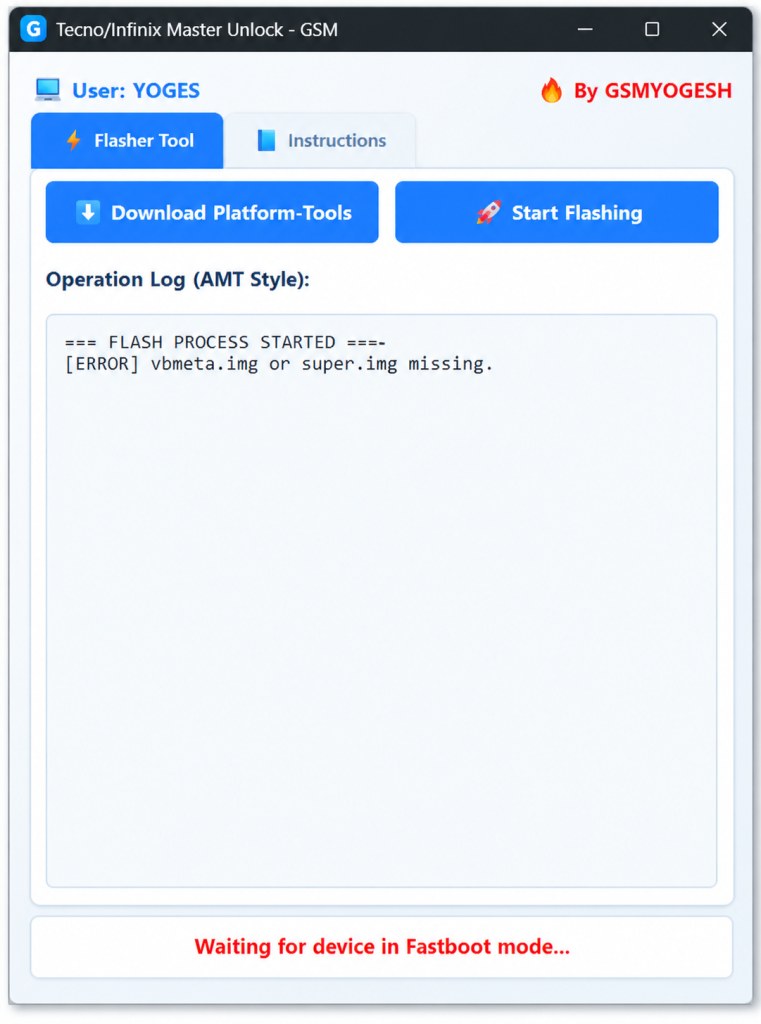
Master Unlock GSM Tool v1 is a portable Windows-based Fastboot and fastbootd flashing utility created by GSMYOGESH. Engineered for GSM technicians and mobile repair enthusiasts (with strong utility on Tecno, Infinix, and compatible Fastboot-enabled devices), it wraps Google’s official platform-tools (fastboot.exe, adb.exe, and required DLLs) inside a clean two-tab interface (Flasher Tool and Instructions) with real-time device polling and command logging.
Complete Features & Workflow Modules of Master Unlock GSM Tool v1
The v1 release focuses on clean, step-controlled dynamic partition flashing and clear operator feedback:
- 1-Click Google Platform-Tools Downloader: Downloads and sets up official Google
platform-tools(fastboot.exe,adb.exe, and supporting DLL files) directly inside the tool’s workspace so you do not have to hunt for separate command-line binaries. - Live 2-Second Device Status Polling: Checks the USB connection every 2 seconds and displays a blinking green/red status bar along with the detected device ID.
- Automatic Pre-Flash Image Check (
vbmeta.img&super.img): Verifies that bothvbmeta.imgandsuper.imgare present in the working folder before starting the flash sequence. - Dual-Slot
vbmetaFlashing (Slot A & Slot B): Flashesvbmetaacross both A and B boot slots to address image verification/integrity checks cleanly. - Guided
fastbootdReboot & Confirmation Prompt: Automatically reboots the connected handset intofastbootdmode for dynamic partition flashing and displays a confirmation popup so you can verify thefastbootdmenu on the phone screen before proceeding. - Dynamic
super.imgFlashing +userdata&metadataWipe: Flashessuper.imginsidefastbootd, erasesuserdataandmetadataas part of the routine, and reboots the phone back to the system. - Real-Time Command Log & Portable Two-Tab UI: Features a clean execution log showing every command run, a two-tab layout (Flasher Tool and Instructions), and a header displaying your Windows username and developer credit—all inside a portable
.exerequiring no installer.
Lock Removal & Servicing Capabilities (FRP, MDM, PIN, Pattern & Screen Locks)
Because Master Unlock GSM Tool v1 executes vbmeta flashing, fastbootd super.img writes, and userdata / metadata erasure, it supports several key lock-clearing and software-restoration scenarios on eligible Fastboot/bootloader-accessible handsets:
1. FRP Bypass (Factory Reset Protection)
When servicing Fastboot-accessible or unlocked devices where setup locks or modified system/verification partitions interfere with normal boot, flashing a clean super.img and vbmeta pair alongside partition resets helps clear lingering setup restrictions so the device can boot cleanly.
2. MDM, Retail Demo & Enterprise Profile Removal
Corporate-managed phones, school tablets, and retail display units often carry Mobile Device Management (MDM) or demo overlays embedded inside system/dynamic partitions. Flashing a clean super.img in fastbootd and erasing userdata and metadata overwrites modified software overlays and restores a clean factory software state on supported units.
3. PIN, Password, and Pattern Lock Reset
Forgetting a screen security credential—whether a numeric PIN, alphanumeric password, or gesture pattern—locks users out of their device. Because Master Unlock GSM Tool v1 erases userdata and metadata during its flashing workflow, it clears forgotten PIN, password, and pattern locks while restoring the system partition.
4. Bootloader & Verified-Boot Integrity Handling
Flashing vbmeta across both A and B slots and transitioning into fastbootd helps technicians resolve verified-boot / dynamic partition mismatches when servicing compatible Android builds.
Supported Brands and Chipsets
Master Unlock GSM Tool v1 is built around Android Fastboot and fastbootd dynamic partition protocols:
- Primary Focus Brands: Tecno, Infinix, and compatible Fastboot /
fastbootd-enabled Android smartphones. - Supported Chipsets: MediaTek (MTK), Qualcomm Snapdragon, and Unisoc / Spreadtrum (SPD) devices supporting Fastboot and
fastbootddynamic partition operations.
System Requirements
| Component | Minimum Requirement | Recommended Specification |
| Operating System | Windows 10 (64-bit) | Windows 10 / 11 (64-bit) |
| Processor | Intel Core 2 Duo / AMD Dual-Core (2.0 GHz) | Intel Core i3 / AMD Ryzen 3 or higher |
| RAM | 2 GB RAM | 4 GB RAM or higher |
| Storage Space | 500 MB free disk space | 15 GB+ available space (for super.img, vbmeta.img & platform-tools |
| Network & Drivers | Internet access (for 1-click platform-tools download) + Fastboot Drivers | Stable Internet + Google ADB/Fastboot & Chipset USB Drivers |
How to Download, Set Up, and Use Master Unlock GSM Tool v1
- Download the Portable
.exe: Download Master Unlock GSM Tool v1 from a trusted source and place the.exefile inside a new empty folder on your PC (do not run it directly from inside a.ziparchive). - Download Google Platform-Tools: Open the
.exefile and click the Download Platform-Tools button inside the tool. Wait for the log window to confirm that the platform-tools are ready. - Add Required Firmware Images: Copy your
vbmeta.imgandsuper.imgfiles into the exact same folder as the tool executable. - Boot into Fastboot Mode & Connect USB: Power off your smartphone, hold the Fastboot button combination to enter Fastboot Mode, and connect the device to your PC using a reliable USB cable.
- Confirm Connection & Start Flashing: Wait until the bottom status bar turns green and displays your device ID. Click Start Flashing.
- Confirm
fastbootd& Finish: When the confirmation popup appears, check your phone screen to verify thefastbootdmenu is visible, click OK, and wait for the log to displayALL DONEas the device reboots.
Frequently Asked Questions (FAQ)
Q1: Does Master Unlock GSM Tool v1 require a setup installation wizard or dongle?
Ans: No, Master Unlock GSM Tool v1 is a portable .exe file that requires no installation wizard or physical dongle. Simply place it in a dedicated folder and run it.
Q2: Why do I need vbmeta.img and super.img in the same folder as the tool?
Ans: The tool automatically checks for vbmeta.img and super.img before starting, flashes vbmeta on both A and B slots, and then reboots into fastbootd to flash super.img. Keeping both files in the tool’s folder ensures uninterrupted execution.
Q3: Will running Master Unlock GSM Tool v1 erase PIN, pattern, and user data?
Ans: Yes, the tool’s workflow erases userdata and metadata as part of the process, which removes forgotten PIN, password, and pattern locks along with personal data stored on the device. Always back up important data before flashing.
Q4: Why is the status bar staying red instead of turning green?
Ans: A red status bar indicates the tool has not yet detected a Fastboot device. Confirm your phone is genuinely in Fastboot Mode, check your USB cable and port, verify that Fastboot USB drivers are installed in Windows Device Manager, and ensure platform-tools were downloaded into the tool’s folder.
Conclusion
Master Unlock GSM Tool v1 Latest Version is a practical, portable Windows fastbootd flasher for technicians working with Tecno, Infinix, and compatible Fastboot-enabled Android devices. By automating platform-tools setup, checking for vbmeta.img and super.img, flashing vbmeta across slots A and B, guiding you into fastbootd, and wiping userdata and metadata with clear live logs, it simplifies dynamic partition flashing and lock-clearing workflows. Always verify your firmware files and back up critical data before starting.